Pages

Wednesday, March 13, 2013

Action Delegate implementation for publisher and subscriber with and without parameters


I usually used to declare a delegate and event as separate declarations to build a publisher and subscriber mechanism. I found an alternate mechanism to accomplish the same
The concept that came to my help was Action Delegate.

  I followed the steps below
1.  Create 2 classes publisher and Subscriber
2.  Declare the Action Delegate in the Publisher class
3.  Hook the action Delegate to the event handler in Subscriber
4.  Raise the event in any of the publisher functions

The example below demonstrates the use of Action delegate with no parameters and Parameterised Action delegates

class Publisher
    {

        /// <summary>
        /// Action delegate without parameter
        /// </summary>
        public Action Completed;

        /// <summary>
        /// Parameterised Action Delegate
        /// </summary>
        public Action<int, string, string> ParameterizedCompleted;

        public void PublishParameterisedAction()
        {

            string str1 = "Hello";
            string str2 = "World";
            StringBuilder builder = new StringBuilder();
            builder.Append(str1);
            builder.Append(str2);
            int length = builder.Length;

            //Raise an event with parameters
            ParameterizedCompleted(length, str1, str2);
        }
        public void PublishAction()
        {
            string str1 = "Hello";
            string str2 = "World";
            StringBuilder builder = new StringBuilder();
            builder.Append(str1);
            builder.Append(str2);
            int length = builder.Length;

            //Raise an event without parameters
           Completed();
        }
    class Subscriber
    {
        

        static void Main(string[] args)
        {
            Publisher publisher = new Publisher();
            publisher.Completed += new Action(handleCompleted);
            publisher.ParameterizedCompleted += new Action<int, string, string>(handleTemplateCompleted);
            publisher.PublishAction ();
            publisher.PublishParameterisedAction ();

            Console.ReadLine();
        }

       static  void handleTemplateCompleted(int length,string str1 ,string  str2)
        {
            Console.Write("Result from TemplateCompletedAction" + length + str1 + str2);
        }

      static  void handleCompleted()
       {

           Console.WriteLine("notification recieved");
       }

      
    }

Difference between Throw Vs Throw ex


Most of us use exception handling very frequently .we generally use try catch finally for handling exceptions.We are often mislead due to bad rethrow of exceptions.

The following snippet shows a bad rethrow
using System;

namespace ExceptionTest
{
    class Program
    {
        static void Main(string[] args)
        {
            try
            {
                callerFunc();
            }
            catch (Exception ex)
            {

                Console.WriteLine(ex.StackTrace);
            }
            Console.ReadLine();

        }

        static void  callerFunc( )
        {

            try
            {
                calleeFunc();

            }
            catch (Exception ex)
            {
                throw ex;
            }
        }

        static void calleeFunc()
        {

            try
            {
                int i = 1;
                int j = 0;
                int k = i / j;

            }
            catch (Exception ex)
            {

                throw ex ;
            }


        }

    }

The result of this code is shown below


The information here is totally misleading as it only gives a partial idea of the total stacktrace of the program. The stacktrace is not preserved.

The Solution is to never use Throw ex, instead use only Throw. The following code preserves the stacktrace of the code.

using System;

namespace ExceptionTest
{
    class Program
    {
        static void Main(string[] args)
        {
            try
            {
                callerFunc();
            }
            catch (Exception ex)
            {

                Console.WriteLine(ex.StackTrace);
            }
            Console.ReadLine();

        }

        static void  callerFunc( )
        {

            try
            {
                calleeFunc();

            }
            catch (Exception ex)
            {
                throw;
            }
        }

        static void calleeFunc()
        {

            try
            {
                int i = 1;
                int j = 0;
                int k = i / j;

            }
            catch (Exception ex)
            {
                throw ;
            }


        }

    }
}


The output of this code preserves the stackTrace totally to get the exact location of the exception.

implementation of Factory Method in C#

Factory Method
Factory Method is a widely used mechanism for creating instances of classes in any object oriented programming language. The Factory Method abstracts the Creation of objects from the consumer.It also provides a single place where objects can be created.I supplies the desired objects hiding the complexity of creation for the consumers
Advantages of Factory Method
1. Hides the Complexity of Creation from the Consumer.

2. Ensures The object creation logic to be in single place
3. Helps customise creation without disturbing the Consumer logic4.brings in logical Seperation between creation and usage
 
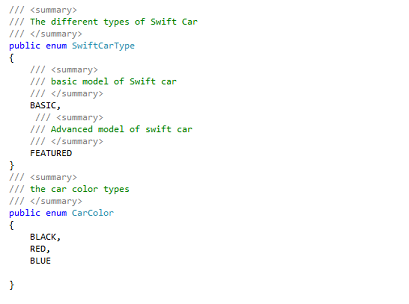
I have used a simple CarFactory example to demonstrate the same .The Factory manufactures swift cars of 2 types basic and Featured with 3 different colors black,blue and Red.

Steps for implementing the Factory Method

1.Create an abstract class Swift Car with an attribute color and a method CaliculatePrice as the price differs for different models


2. Create 2 derived classes For Basic Swift Car and Featured Swift Car


3. Define Enumerations which describe the Car types and Car Colors


4. Create a Static Class with a Static Method which Returns the Car of Desired Type
Note:
it is very important to keep the abstract base class Swift car as a Return Type.


5. Design a Client to Consume the Car from the Swift Car Factory.


Finally it can be observed that creation logic is unknown to the client and Since the factory takes care of the creation .the Factory logic can be further customised or changed easily.

Thursday, January 17, 2013

Passing arguments from VBscript to the executable file and getting value from exe without openning the command box for exe

Create test.vbs file and put the below lines in it

Set oArgs = WScript.Arguments
If oArgs.Length = 0 Then
 WScript.Echo "Please provide arguments"
Else
 For Each sArg In oArgs
  REM WScript.Echo "Hello " & sArg
  s = s & sArg & " "
 Next
 WScript.Echo encryptdecrypt(s)
End If
Function encryptdecrypt(str)
 Set objShell = WScript.CreateObject("WScript.Shell")
 Set objExec = objShell.Exec("E:\encryptdecrypt.exe" &  "  " & str)
 line = objExec.StdOut.ReadAll
 encryptdecrypt=line
End Function


Execute script file on command prompt as
c:\>cscript e:\test.vbs e amit
c:\>cscript e:\test.vbs d 82VoUK9EyZpXVuSlNHvVmA==

Exe file in C#

class Program
{
 static void Main(string[] args)
 {
     if (args.Length == 0)
     {
  Console.WriteLine("Please provide arguments.");
  return; //no command line arg.
     }
     if (args.Length == 2)
     {
  try
  {
      string key = "YourKeyHere";
      if (args[0].Trim().ToLower() == "e")
      {
   string decryptedstring = EncryptDecryptClass.Encrypt(args[1].Trim(), key);
   Console.WriteLine(decryptedstring);
      }
      if (args[0].Trim().ToLower() == "d")
      {
   string decryptedstring = EncryptDecryptClass.Decrypt(args[1].Trim(), key);
   Console.WriteLine(decryptedstring);
      }
  }
  catch (Exception e)
  {
      Console.WriteLine(e.Message);
  }
     }          
 }
}


Execute exe file on command prompt as
C:/>E:\encryptdecrypt e helloworld

Tuesday, January 8, 2013

Display loading image during ajax data call


$(document).ready(function () {
    try {
        $("body").on({
            // When ajaxStart is fired, add 'loading' to body class
            ajaxStart: function () {
                $(this).addClass("loading");
            },
            // When ajaxStop is fired, rmeove 'loading' from body class
            ajaxStop: function () {
                $(this).removeClass("loading");
            }
        });
    } catch (e) {
        alert(e.Description);
        alert(error);
    }
});

/* Start by setting display:none to make this hidden.
   Then we position it in relation to the viewport window
   with position:fixed. Width, height, top and left speak
   speak for themselves. Background we set to 80% white with
   our animation centered, and no-repeating */
.modal
{
    display: none;
    position: fixed;
    z-index: 1000;
    top: 0;
    left: 0;
    height: 100%;
    width: 100%;
    background: #f9f9f9 url('images/loader.gif') 50% 50% no-repeat;
    opacity: .70;
    -ms-filter: progid:DXImageTransform.Microsoft.Alpha(Opacity = 70);
    filter: Alpha(Opacity=70);
}

/* When the body has the loading class, we turn
   the scrollbar off with overflow:hidden */
body.loading
{
    overflow: hidden;
}

/* Anytime the body has the loading class, our
   modal element will be visible */
body.loading .modal
{
    display: block;
}

Tuesday, December 18, 2012

Bulk Import from Excel file to SQl Server in ASP.NET

<asp:FileUpload ID="FileUpload1" runat="server" Width="250px" Height="25px" /><br />
<asp:RequiredFieldValidator ID="rfv" runat="server" ControlToValidate="FileUpload1"
ErrorMessage="Please select file to upload" Display="Dynamic" ValidationGroup="vgInsert" SetFocusOnError="True"></asp:RequiredFieldValidator>
<asp:Button ID="btnInsert" runat="server" OnClientClick="showPleaseWait()" OnClick="btnInsert_Click"
Text="Save" Width="85px" Visible="false" ValidationGroup="vgInsert" />

protected void btnInsert_Click(object sender, EventArgs e)
{
    if (Page.IsValid)
    {
 if (FileUpload1.HasFile)
 {
     foreach (Process process in Process.GetProcessesByName("EXCEL"))
     {
  if (process.MainModule.ModuleName.ToUpper().Equals("EXCEL.EXE"))
  {
      process.Kill();
      Thread.Sleep(2000);
      break;
  }
     }
     try
     {
  sFilePath = Path.GetFileName(FileUpload1.FileName);
  if (Path.GetExtension(sFilePath) == ".xlsx" || Path.GetExtension(sFilePath) == ".xls")
  {
      FileUpload1.SaveAs(Server.MapPath(this.UploadFolderPath) + "\\" + sFilePath);
  }
  else
  {
      Label1.Text = "Please upload excel file only.";
      return;
  }
  DateTime dDate = Convert.ToDateTime(txtDate.Text);
  using (OleDbConnection connection = new OleDbConnection(CreateConnectionString(Server.MapPath(this.UploadFolderPath) + "\\" +sFilePath, Path.GetExtension(FileUpload1.PostedFile.FileName))))
  {
      OleDbCommand command = new OleDbCommand("Select * , '" + dDate.ToString("yyyy-MM-dd") + "' as DateExtracted, '" + ddlProjectName.SelectedValue + "' As ProjectName, '" + ddlArea.SelectedValue + "' As Area" + " FROM [Sheet1$]", connection);
      connection.Open();
      // Create DbDataReader to Data Worksheet
      using (DbDataReader dr = command.ExecuteReader())
      {
   // SQL Server Connection String
   string sqlConnectionString = connectionString;
   // Bulk Copy to SQL Server
   using (SqlBulkCopy bulkCopy = new SqlBulkCopy(sqlConnectionString))
   {
       bulkCopy.DestinationTableName = TABLENAME;
       ColumnMapping(bulkCopy);
       try
       {
    bulkCopy.WriteToServer(dr);
       }
       catch (Exception ex)
       {
    Console.WriteLine(ex.Message);
       }
       finally
       {
    connection.Close();
       }
       Label5.Text = "File Data imported succesfully";
   }
      }
  }
     }
     catch (Exception ex)
     {
  Label1.Text = "Upload status: The file could not be uploaded.The following error occured:" + ex.Message;
     }
 }
 else
 {
     Label1.Text = "Upload status: The file could not be uploaded.";
 }
    }
}
private void ColumnMapping(SqlBulkCopy bulkCopy)
{
    bulkCopy.ColumnMappings.Add("ID", "ClashID");
    bulkCopy.ColumnMappings.Add("Status", "ClashStatus");
    bulkCopy.ColumnMappings.Add("Type", "ClashType");
    bulkCopy.ColumnMappings.Add("P G", "ClashPG");
    bulkCopy.ColumnMappings.Add("OID", "ClashOID");
    bulkCopy.ColumnMappings.Add("Remark", "ClashRemarks");
    bulkCopy.ColumnMappings.Add("A-System Path", "PartASystemPath");
    bulkCopy.ColumnMappings.Add("A-Name", "PartAName");
    //bulkCopy.ColumnMappings.Add("A-Parent Name", "L_Name");
    bulkCopy.ColumnMappings.Add("A-Aspect", "PartAAspect");
    bulkCopy.ColumnMappings.Add("A-Clashes", "PartAClashes");
    bulkCopy.ColumnMappings.Add("A-P G", "PartAPG");
    bulkCopy.ColumnMappings.Add("A-OID", "PartAOID");
    bulkCopy.ColumnMappings.Add("B-System Path", "PartBSystemPath");
    bulkCopy.ColumnMappings.Add("B-Name", "PartBName");
    //bulkCopy.ColumnMappings.Add("B-Parent Name B", "City");
    bulkCopy.ColumnMappings.Add("B-Aspect", "PartBAspect");
    bulkCopy.ColumnMappings.Add("B-Clashes", "PartBClashes");
    bulkCopy.ColumnMappings.Add("B-P G", "PartBPG");
    bulkCopy.ColumnMappings.Add("B-OID", "PartBOID");
    bulkCopy.ColumnMappings.Add("DateExtracted", "DateExtracted");
    bulkCopy.ColumnMappings.Add("ProjectName", "ProjectName");
    bulkCopy.ColumnMappings.Add("Area", "Area");
}
public string CreateConnectionString(string fileLocation, string fileExtension)
{
    return @"Provider=Microsoft.ACE.OLEDB.12.0;Data Source='" + fileLocation + "';Extended Properties= 'Excel 8.0;HDR=Yes;IMEX=1'";
}

Thursday, December 13, 2012

Exporting to excel with formating and preserving starting(Leading) zeros

public static void ExportToExcel(DataTable dt, string fileNameWithoutExtension)
{
    try
    {
 if (dt.Rows.Count > 0)
 {
     //Note: For simple Export uncomment the below code and use it.

     //////System.IO.StringWriter tw = new System.IO.StringWriter();
     //////System.Web.UI.HtmlTextWriter hw = new System.Web.UI.HtmlTextWriter(tw);
     //////DataGrid dgGrid = new DataGrid();
     //////dgGrid.DataSource = dt;
     //////dgGrid.DataBind();

     ////////Get the HTML for the control.
     //////dgGrid.RenderControl(hw);
     ////////Write the HTML back to the browser.
     ////////Response.ContentType = application/vnd.ms-excel;
     //////HttpContext.Current.Response.ContentType = "application/vnd.ms-excel";
     //////HttpContext.Current.Response.AppendHeader("Content-Disposition", "attachment; filename=" + fileNameWithoutExtension.Trim() + ".xls" + "");
     ////////this.EnableViewState = false;
     //////HttpContext.Current.Response.Write(tw.ToString());
     //////HttpContext.Current.Response.End();


     //Note : For Exporting to excel with formating and preserving starting(Leading) zeros use below code.
     String style = "<style>.text{mso-number-format:\\@;}</style>";
     HttpContext.Current.Response.Clear();
     HttpContext.Current.Response.Buffer = true;
     HttpContext.Current.Response.AddHeader("Content-Disposition", "attachment; filename=" + fileNameWithoutExtension.Trim() + ".xls" + "");
     HttpContext.Current.Response.ContentType = "application/excel";
     StringWriter sw = new StringWriter();
     System.IO.StringWriter ioSw = new System.IO.StringWriter();
     System.Web.UI.HtmlTextWriter htw = new System.Web.UI.HtmlTextWriter(ioSw);
     GridView GridView1 = new GridView();
     GridView1.AllowPaging = false;
     GridView1.DataSource = dt;
     GridView1.DataBind();
    
     //Change the Header Row
     GridView1.HeaderRow.Style.Add("background-color", "#cc0000");
    
     //Apply style to Individual Cells    
     GridView1.HeaderRow.Cells[0].Style.Add("background-color", "green");

     for (int i = 0; i < GridView1.Rows.Count; i++)
     {
  GridViewRow row = GridView1.Rows[i];

  //Apply text style to each Row        
  row.Attributes.Add("class", "textmode");

  //Apply style to Individual Cells of Alternating Row        
  if (i % 2 != 0)        
  {
   row.Cells[1].Attributes.Add("class", "text");//Format individual Column as text to preserve leading zeros
   row.Cells[2].Style.Add("background-color", "#C2D69B");
  }
     }

     //Remove Controls    
     this.RemoveControls(GridView1);

     GridView1.RenderControl(htw);
     HttpContext.Current.Response.Output.Write(style + ioSw.ToString());
     HttpContext.Current.Response.Flush();
     HttpContext.Current.Response.End();
 }
 else
 {
     throw new Exception("No records to export");
 }
    }
    catch (Exception ex)
    {
 throw ex;
    }
}
private void RemoveControls(Control grid)
{
    Literal literal = new Literal();
    for (int i = 0; i < grid.Controls.Count; i++)
    {
 if (grid.Controls[i] is LinkButton)
 {
     literal.Text = (grid.Controls[i] as LinkButton).Text;
     grid.Controls.Remove(grid.Controls[i]);
     grid.Controls.AddAt(i, literal);
 }
 else if (grid.Controls[i] is DropDownList)
 {
     literal.Text = (grid.Controls[i] as DropDownList).SelectedItem.Text;
     grid.Controls.Remove(grid.Controls[i]);
     grid.Controls.AddAt(i, literal);
 }
 else if (grid.Controls[i] is CheckBox)
 {
     literal.Text = (grid.Controls[i] as CheckBox).Checked ? "True" : "False";
     grid.Controls.Remove(grid.Controls[i]);
     grid.Controls.AddAt(i, literal);
 }
 else if (grid.Controls[i] is HyperLink)
 {
     literal.Text = (grid.Controls[i] as HyperLink).Text;
     grid.Controls.Remove(grid.Controls[i]);
     grid.Controls.AddAt(i, literal);
 }
 else if (grid.Controls[i] is Button)
 {
     literal.Text = (grid.Controls[i] as Button).Text;
     grid.Controls.Remove(grid.Controls[i]);
     grid.Controls.AddAt(i, literal);
 }
 if (grid.Controls[i].HasControls())
 {
     RemoveControls(grid.Controls[i]);
 }
    }
}